Eye of Veles
Your team is in your hands.
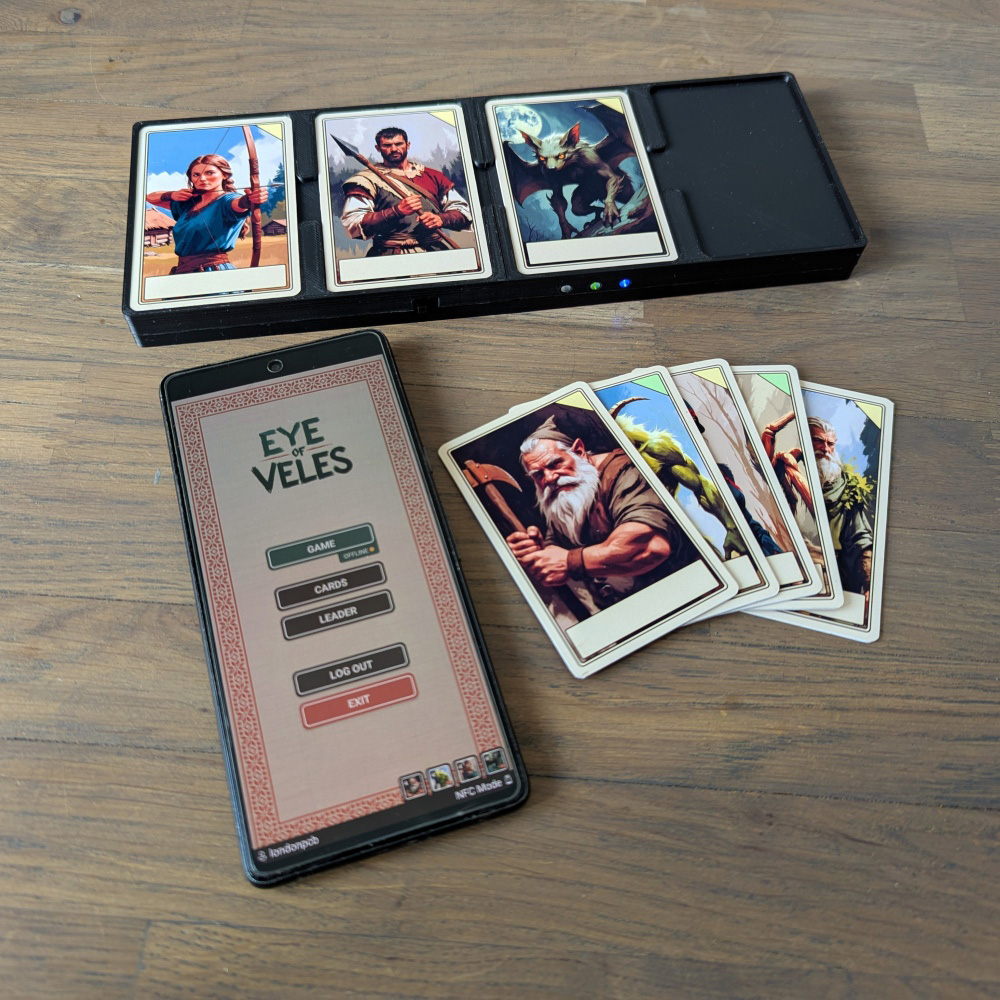
A card battler set in Slavic myth, played with real cards. Each one is a character that levels up, learns new skills and remembers everything.



Your team is in your hands.
A card battler set in Slavic myth, played with real cards. Each one is a character that levels up, learns new skills and remembers everything.
Pick an opponent near your level and take turns. You get two moves each turn, with any card, any ability and any target. Watch your health and mana, and may the better team win. The player with less experience goes first, so a newcomer always has a chance.
All you need is an Android phone with NFC. Want it smoother? Arena reads all four cards at once and saves them after every match.
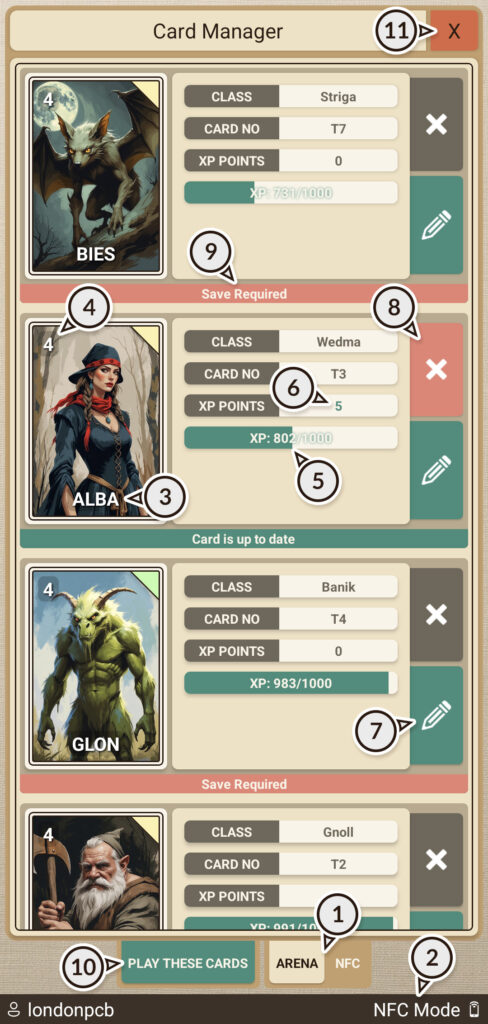
To scan your cards, first select “Cards” from the menu, which will take you to the Card Manager where you can choose your scanning mode ① and then scan up to 4 cards at once. You can check which mode you’re currently in from the information displayed in the bottom right corner of the screen ②.
After scanning, all basic information will be displayed, including the card name ③, level ④, amount of experience gained ⑤, and the number of points ⑥ you can invest in your character’s abilities. To edit a card, click the edit button ⑦, to remove it from the list, click the close button ⑧.
Below each card, you’ll also find information about whether the card requires saving or not ⑨. In Arena mode, saving happens automatically, while in NFC mode you need to bring the card close to your phone again to save it.
To play your cards, you can click the “Play These Cards” button ⑩ or the close button ⑪.
If a card has never been used before, you must first name your character to play with it. To do this, click the edit button ⑦. The name stays with the card and cannot be changed.
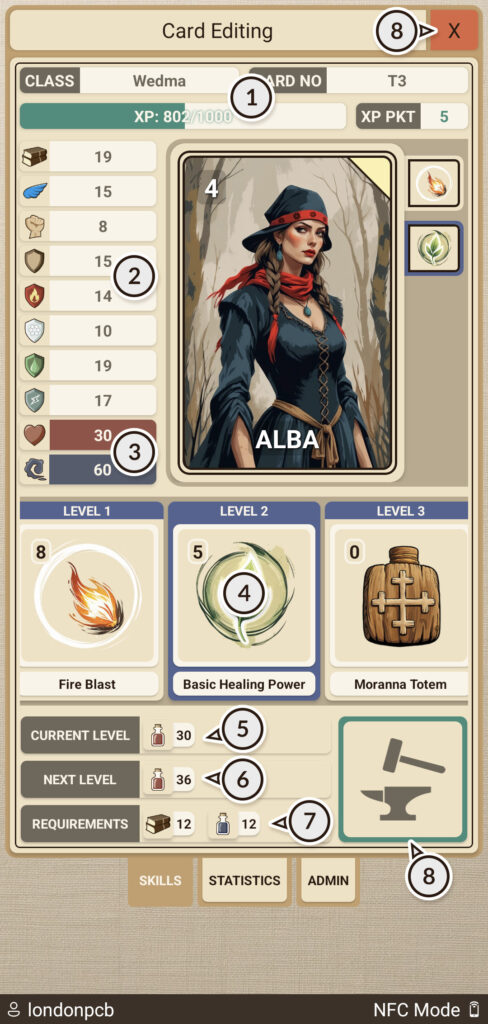
After naming your card, the card editor will open. At the top, you’ll find basic information ①, and on the left side, your character’s statistics ② which include: wisdom, agility, strength, physical attack defense, fire resistance, cold resistance, poison resistance, electricity resistance, as well as the amount of health points and mana you possess ③.
At the bottom, you’ll see all the abilities ④ your character possesses and where you can invest your earned experience points.
When you select a chosen ability from the list, information will be displayed showing how the ability currently affects your statistics ⑤ and how it will affect them after investing an experience point in it ⑥.
Each ability also has requirements that must be met ⑦. If you have experience points and the requirements are fulfilled, you can invest in the selected ability by clicking the hammer and anvil button ⑧.
To exit the editor, simply click the close button ⑨ in the top right corner of the screen.
After selecting your team, close Card Manager and choose “Play” from the main menu.
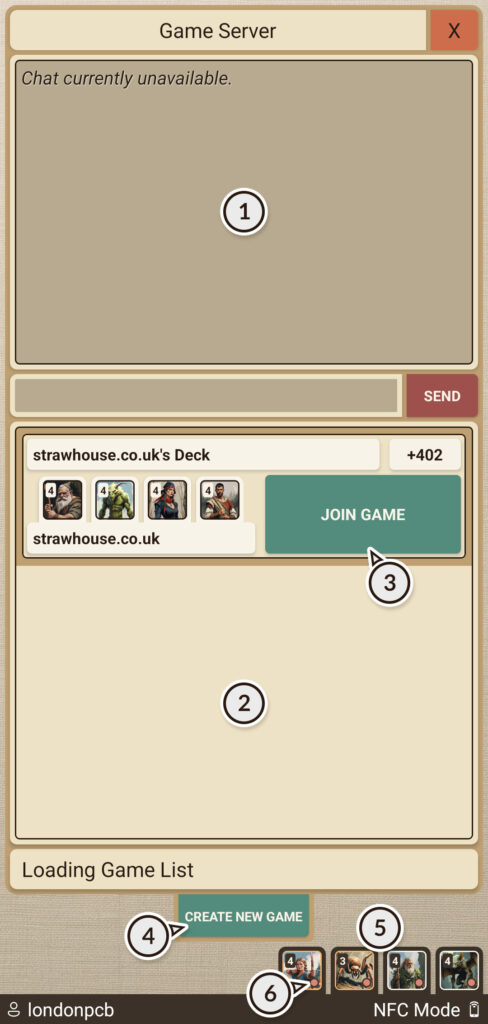
Two windows will appear: the game chat window ① at the top, where you can communicate with other players on the server, and a list of available games ② below.
To start a game, choose an opponent close to your experience level, then click “Join Game” ③ and wait for the other player to accept the game invitation. You can also create your own game by clicking “Create Game” ④.
All your scanned cards are stored in the virtual storage ⑤ in the bottom right corner of the screen. If a thumbnail has a white border, it means the card is ready to play. If the border is red, the card cannot be used in the game because either it’s already in use or it hasn’t been named yet. If you want to play with only selected cards (for example, to balance gameplay), simply click on the thumbnail of the card you don’t want to include in the game – its border will change to orange. To reactivate the card, just click on it again.
Additionally, thumbnails have a save indicator ⑥. If it’s green, the card doesn’t require saving; if it’s red, the card should be saved.
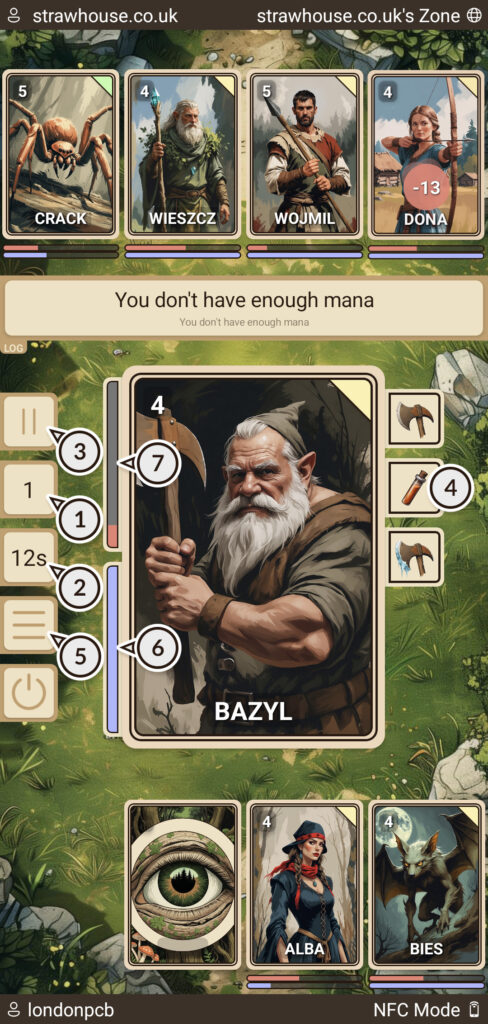
After cards are dealt, the player with less experience goes first. Each player has 2 moves ① per turn and a time limit ② to execute them.
Players can pause the game at any time by clicking the pause button ③ and resume it by clicking it again.
Players have complete freedom in choosing which card to use in each move.
First, click on the card you want to use, then abilities that the character possesses will appear on the right side ④. To use an ability, select one by clicking on it, then click on an opponent’s card or your own to trigger the effect.
If you don’t have any card whose ability you can use, you can pass your turn to the opponent by clicking on the menu button ⑤ and then selecting the flag button.
On the right side of the selected card, you’ll find the mana bar ⑥ and the health bar ⑦.
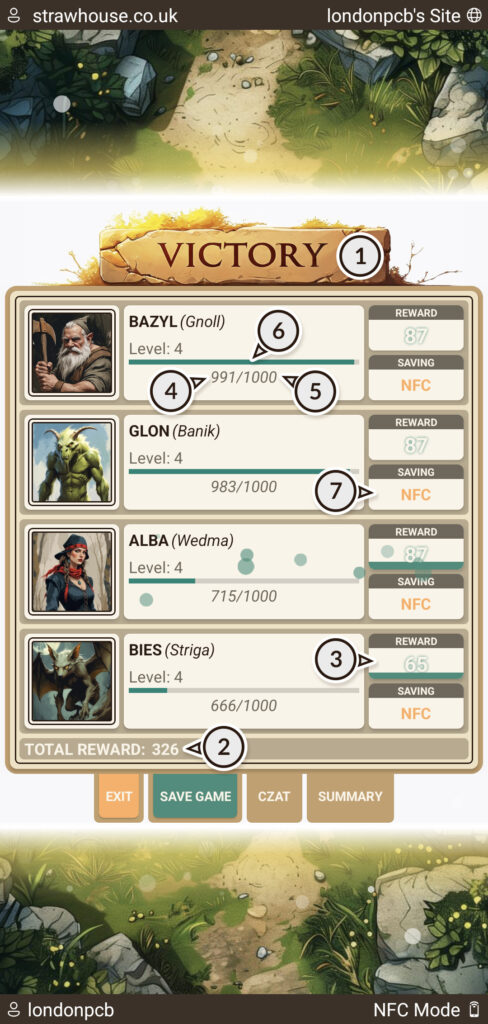
After the match ends, you’ll see an end screen with a summary of the gameplay ①.
The total amount of experience points awarded for the match is located at the bottom of the screen ②, while individual amounts depend on whether the card survived the battle or not and can be found in the “Reward” fields on the right side of each card ③.
The amount of experience possessed ④ and the experience required for the next level ⑤ can be found under the experience bar ⑥.
When a card levels up, you receive 5 points that you can invest in any abilities of your choice.
When playing in Arena mode, you can find the saving progress of each card in the “Saving” field ⑦. If you’re playing in NFC mode, to save cards you need to go to the “Cards” section.
The game is and will continue to be actively developed. It’s currently undergoing intensive testing. The Arena and cards are currently in production.
Several improvements will be introduced to the game:
The adventure awaits – press “SIGN UP” button and stay tuned for updates!